OCS 2007 Installation – Part 2
Other parts in this series:
Last time we left off about halfway through the OCS 2007 installer. This part should run through the end of the initial installation process. I’ll cover some of the initial configuration on the next part.
Configure Internal Certificate
The Configure Server section should now have a green checkmark next to it. Click the Run button under Configure Certificate to continue.
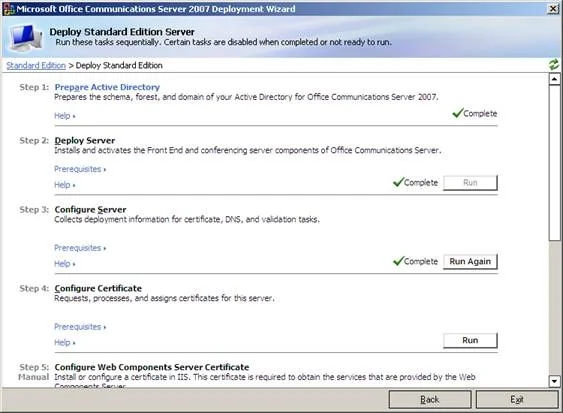
The Configure Certificate Wizard should start. Press Next to continue.
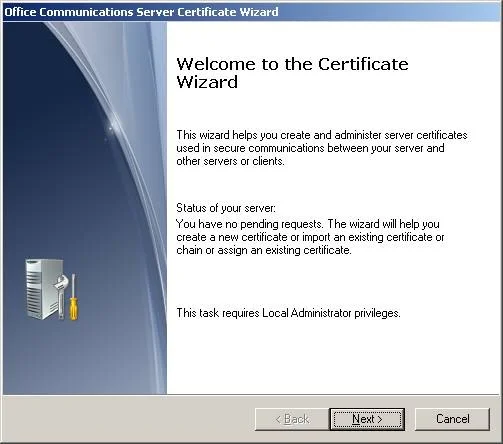
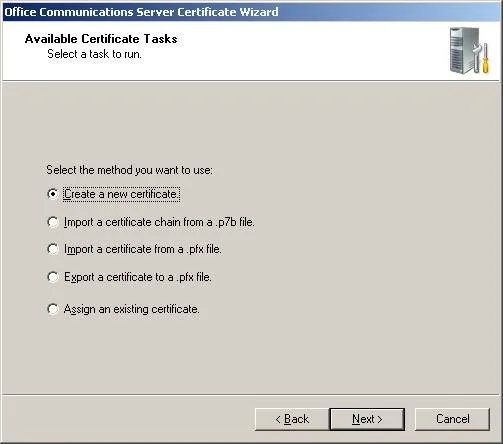
Choose Create a new certificate and press Next.
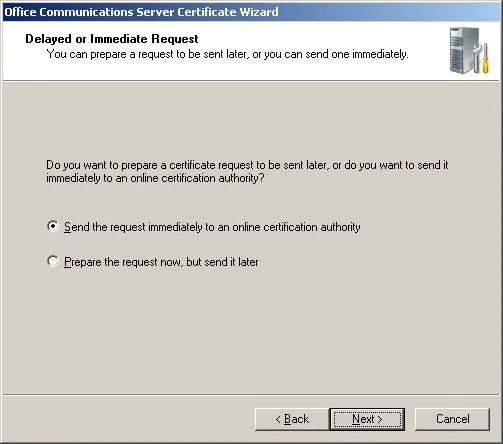
Choose Send the request immediately to an online certification authority and press Next.
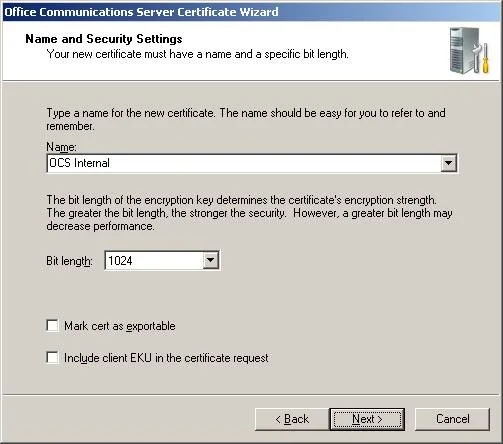
Give the certificate a meaningful friendly name, uncheck Mark cert as exportable and press Next. We shouldn’t ever need to export the certificate from the front-end server.
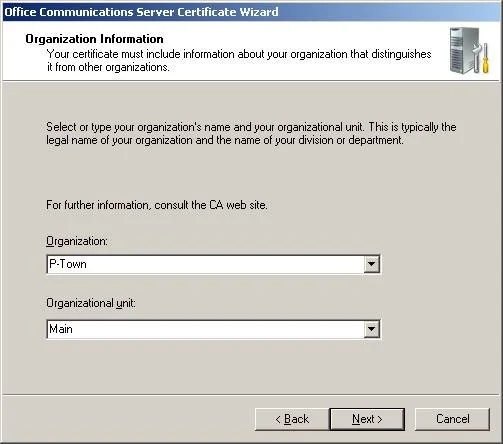
Fill in organization and organization unit names and press Next.
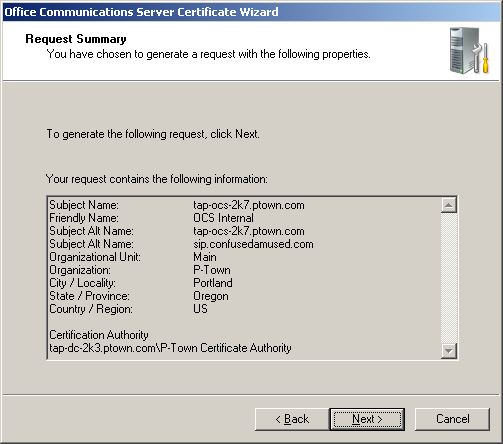
Leave the subject name as the fully qualified name of the internal OCS machine, tap-ocs-2k7.ptown.com. In the subject alternate name (SAN) box enter tap-ocs-2k7.ptown.com,sip.confusedamused.com. Press Next.
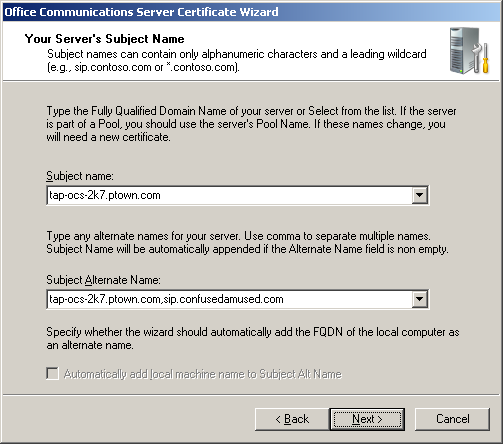
Note: The reason the first SAN listed must be the same as the subject name is because of how ISA 2006 handles the reverse proxy. If we only left sip.confusedamused.com as the sole SAN entry everything would work fine internally, but we’d run into problems with the reverse proxy later. Since we’ll later tell ISA the internal site name is tap-ocs-2k7.ptown.com, but when it connects it tries to match the subject name to the first SAN listed. When it doesn’t line up ISA throws an Error 500 – Service Principal Name Incorrect. Doing the certificate this way now removes some unnecessary work later. You can read some more about this ISA issue here.
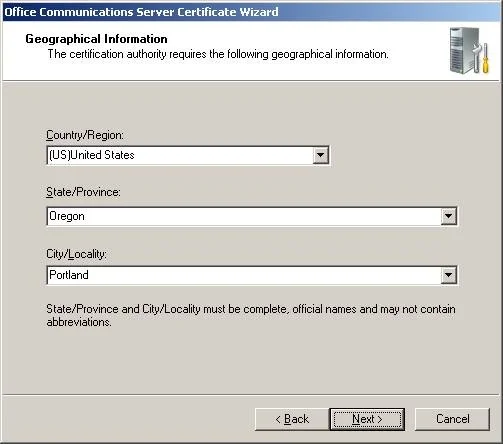
Enter a state and province and press Next.
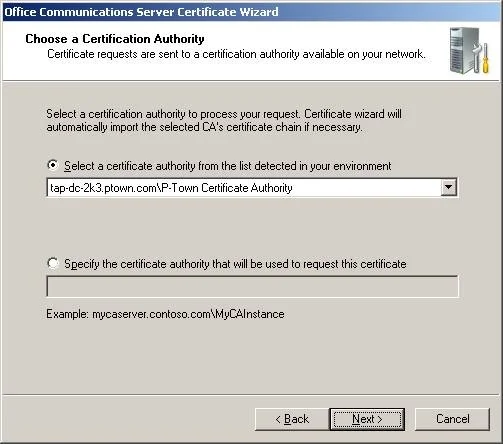
The certificate authority, tap-dc-2k3.ptown.com\P-Town Certificate Authority, should already be detected. Press Next.
Review the certificate information and press Next to generate the certificate.
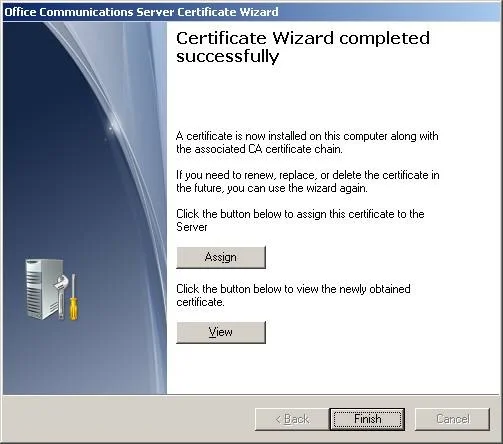
The success message should appear. Press the Assign button to use the certificate just created for OCS services.
A message indicating the certificate was applied should appear. Press OK.

Click Finish to close the certificate wizard.
Assign Web Components Certificate
Open IIS Manager, expand the Web Sites folder, right-click on the Default Web Site and choose Properties.
![clip_image002[5]](http://images.squarespace-cdn.com/content/v1/56e500c2e321404618f27dd4/1458517487522-ZFYMD20XV81FEXF1EXAD/clip-image0025.jpg)
Click on the Directory Security tab.
![clip_image004[5]](http://images.squarespace-cdn.com/content/v1/56e500c2e321404618f27dd4/1458517492828-8ALZVC7ME87FGH5AXX4V/clip-image0045.jpg)
Click the Server Certificate button to start the Web Server Certificate Wizard.
Press Next to start the process.
![clip_image006[5]](http://images.squarespace-cdn.com/content/v1/56e500c2e321404618f27dd4/1458517496740-OWHU6J7MUD7XGRJ0U6IU/clip-image0065.jpg)
Choose Assign an existing certificate and press Next.
![clip_image008[5]](http://images.squarespace-cdn.com/content/v1/56e500c2e321404618f27dd4/1458517500524-WYIMA0TP9WQFKBXMOTFD/clip-image0085.jpg)
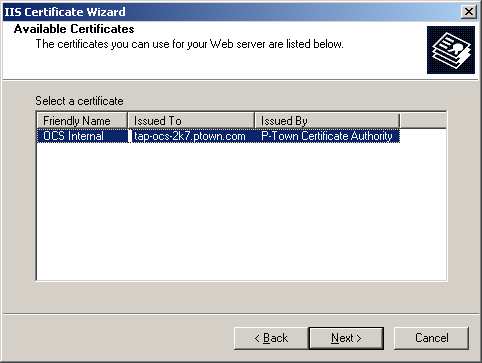
Select the certificate that was issued to tap-ocs-2k7.ptown.com and press Next.
Leave the default SSL port of 443 and press Next.
![clip_image012[5]](http://images.squarespace-cdn.com/content/v1/56e500c2e321404618f27dd4/1458517507522-6BHFF2ZZ5JJIM8NTLREU/clip-image0125.jpg)
Review the certificate summary and press Next.
![clip_image014[5]](http://images.squarespace-cdn.com/content/v1/56e500c2e321404618f27dd4/1458517510533-IX7YRDSWZA0Y40BT4TN7/clip-image0145.jpg)
A success message appears. Click Finish to close the wizard.
![clip_image016[5]](http://images.squarespace-cdn.com/content/v1/56e500c2e321404618f27dd4/1458517512230-GXOB5P3GA195EP8P6CLS/clip-image0165.jpg)
Warning: The service accounts RTCService and RTCComponentService do not have have the Password Never Expires option selected by default. Unless you want those account passwords to be changed with the default domain policy I would recommend going into Active Directory Users & Computers and making sure those passwords don’t expire. If they do expire your OCS services won’t start.
Start Services
At this point the OCS services can started. Flip back to the OCS installer and click the Run button under Start Services.
![clip_image002[7]](http://images.squarespace-cdn.com/content/v1/56e500c2e321404618f27dd4/1458517490131-FVQSAODHHIBH34QE588K/clip-image0027.jpg)
The Start Services Wizard should open. Press Next to continue.
![clip_image004[7]](http://images.squarespace-cdn.com/content/v1/56e500c2e321404618f27dd4/1458517494022-4H20Q9SCUFYWHE3UAJ6S/clip-image0047.jpg)
Press Next again to start the list of services found.
![clip_image006[7]](http://images.squarespace-cdn.com/content/v1/56e500c2e321404618f27dd4/1458517497522-F6SKVW0UIJNA9WGRH3H4/clip-image0067.jpg)
A success dialog will appear when it finishes. Check the box to view the log if desired, but press Finish to continue.
![clip_image008[7]](http://images.squarespace-cdn.com/content/v1/56e500c2e321404618f27dd4/1458517501522-RQJ4EV5B0BIYH3YWQMYO/clip-image0087.jpg)
At this point, OCS is up and running, but will not pass many of the validation tests. Exit the installer completely. I’ll cover the DNS configuration in the next part of this series.